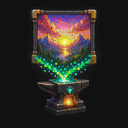
Logo: clean edges at 1×1
The MapKluss logo shows when disabling dithering preserves bold shapes and clean edges.
 MAPKLUSSMINECRAFT MAP ART WORKSHOP
Export
MapKluss can export more than PNG and `.litematic`. It also supports `MAP.DAT` for players who want a direct map-based workflow and a Minecraft-ready output.
This is useful when you want a map-based pipeline: you can prepare the image in Minecraft map format and split larger builds into separate maps.
The MapKluss logo shows when disabling dithering preserves bold shapes and clean edges.
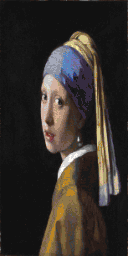
A vertical grid keeps the silhouette and face, while KlussDither softens transitions without losing the eyes or earring.
When the map-based workflow matters more and you want to work directly with maps. For block-by-block building guidance, Litematic is usually better.
Yes. For multi-map art, MapKluss can export multiple `MAP.DAT` files, one per map.
Usually yes. Even for MAP.DAT, output quality still depends on palette, dithering, and your 2D/3D choices.